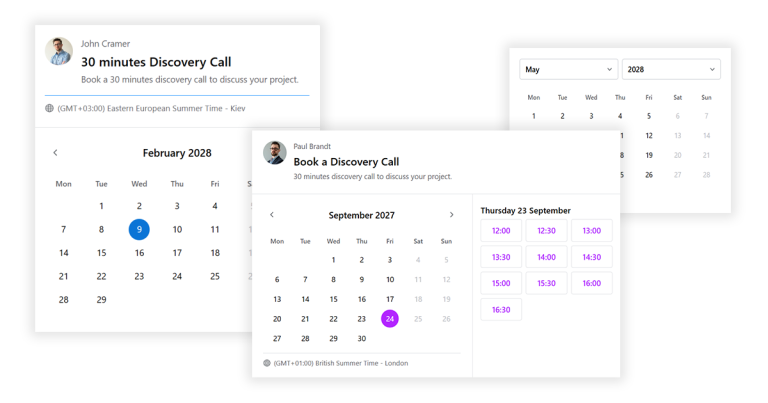

A double booking is one of the most frustrating things that can happen with an appointment-based business. Two clients arrive at the same time, both with valid confirmation emails. Someone has to be turned away. The trust you built to get that booking is immediately damaged.
The good news is that double bookings are almost always preventable — if your booking setup reads your calendar correctly. This guide explains why they happen and exactly how to stop them.
What this guide covers
- Why double bookings happen even with Google Calendar connected
- The difference between real-time availability and sync-based availability
- How to block time in Google Calendar so no booking tool can override it
- Buffer time, minimum notice, and other settings that prevent back-to-back conflicts
- What happens when two people try to book the same slot at exactly the same time
Why double bookings happen
Most double bookings come down to one of three causes.
The booking tool does not read your calendar in real time. Some WordPress booking plugins store their own copy of your availability. They sync with Google Calendar periodically — every few minutes or hours — but in between syncs, a slot that was just blocked in your calendar can still appear available in the booking widget. Someone books it. Then the sync catches up and you have a conflict.
The Google Calendar sync connection broke silently. If your plugin connects to Google Calendar via OAuth, the connection can expire without warning. The plugin carries on showing slots based on its own data — as if nothing happened — but Google Calendar is no longer being checked. Slots that you manually blocked do not register.
You are accepting bookings through more than one channel. If you take bookings through your website, over the phone, and directly in Google Calendar, none of those channels automatically know what the others are doing — unless each one reads from a single shared source of truth.
The fix: real-time free/busy checks
The only reliable way to prevent double bookings is to query Google Calendar’s free/busy data at the moment a visitor loads the booking widget — not from a cached copy, and not from a sync that ran ten minutes ago.
Google Calendar’s free/busy API returns exactly one thing: which time ranges are occupied on a given calendar. It does not matter how the time was blocked — by a previous booking, a personal appointment, a recurring meeting, or an all-day event. If the time is marked as busy, the API reports it as unavailable.
A booking plugin that calls this API every time a visitor opens the widget will always show accurate availability. A plugin that reads from its own database — and syncs that database with Google Calendar in the background — will occasionally be wrong.
How CalNative Booking handles this
CalNative Booking calls the Google Calendar free/busy API directly when a visitor opens the booking widget. There is no cached copy of availability, no sync delay, no intermediate database. The slots shown are the slots that are genuinely free at that exact moment.
The connection uses a Google service account — a permanent server-to-server credential — rather than OAuth. This means the connection never expires. There is no risk of the calendar check silently failing because a token ran out.
When a booking is confirmed, a Google Calendar event is created immediately. If another visitor is looking at the same slot at the same time, the next time their browser refreshes the availability (or when they proceed to confirm), that slot will be gone.
Blocking time directly in Google Calendar
Because the plugin reads from Google Calendar rather than its own database, any event you create in Google Calendar is automatically respected — no extra configuration needed.
Practical uses:
- Block a day off: create an all-day event. The plugin will show the entire day as unavailable.
- Block a specific time: create an event for the exact hours you want to protect. A two-hour lunch break, an internal meeting, a school run — all of these will prevent bookings during that window.
- Block recurring time: create a recurring event in Google Calendar for anything that repeats — a weekly team call, a daily admin block. Each instance will be marked as unavailable in the widget automatically.
- Block a holiday period: create multi-day all-day events. The entire period will be blocked in the booking widget without touching any plugin settings.
You do not need to log into WordPress to manage any of this. Manage your calendar in Google Calendar as you normally would, and the booking widget stays in sync automatically.
Using buffer time to prevent back-to-back conflicts
Even with accurate availability checks, back-to-back bookings can create practical problems. A 60-minute appointment that ends at 2:00 PM leaves no time to finish up before a 2:00 PM booking starts. If you need travel time, preparation time, or just a short break between appointments, you need to build that into your settings.
In CalNative Booking’s settings, the Buffer time field adds a gap after each confirmed booking before the next slot becomes available. Set it to 15 minutes and a booking that ends at 2:00 PM will block the 2:00 PM slot as well — the next available slot will be 2:15 PM.
This is different from blocking time in Google Calendar. Buffer time is applied automatically to every booking, so you do not need to manually create a 15-minute event after every appointment.
Minimum notice and booking window
Two other settings help prevent conflicts that come from poorly timed bookings:
Minimum notice prevents someone from booking a slot that is too soon to prepare for. If you need at least 24 hours’ notice, set minimum notice to 24 hours and any slots within the next 24 hours will be blocked automatically — even if they would otherwise appear available.
Booking window limits how far in advance someone can book. If you only want to accept bookings up to 60 days ahead, set the booking window to 60 days. Slots beyond that date will not be shown, which prevents situations where someone books months ahead and you have no record of it until it approaches.
What if two people try to book the same slot simultaneously?
This is the hardest edge case to handle in any booking system. Two visitors load the booking widget at 10:53 AM and both see the 11:00 AM slot as available. Both click it. Both fill in their details. Both click Confirm at almost the same moment.
CalNative Booking handles this by creating the Google Calendar event as the first step of the booking confirmation process. The first request to arrive creates the event and reserves the slot. The second request, arriving fractions of a second later, checks free/busy again before completing — finds the slot now occupied — and returns an error asking the visitor to choose another time.
In practice, exact simultaneous bookings are rare. Most “double bookings” come from the sync-delay and expired-token issues described earlier — which real-time API reads solve entirely.
If you take bookings through multiple channels
If you also accept bookings by phone or email and add them manually to your calendar, the system still works correctly — as long as you add those appointments to the same Google Calendar that the plugin is watching.
The plugin’s Calendar ID setting determines which calendar is checked. Any event on that calendar will be treated as a blocked slot, regardless of how it was created. A phone booking added directly in Google Calendar will show as unavailable in the website widget immediately, with no extra steps.
The key discipline is: every appointment goes into the same Google Calendar. Keep everything in one place and the booking widget will always reflect reality.
Summary
Double bookings in WordPress booking systems almost always trace back to one root cause: the booking tool is not checking Google Calendar at the moment a slot is requested. Fix that, and most double booking problems disappear.
- Use a booking plugin that reads Google Calendar’s free/busy API in real time — not one that syncs periodically
- Use a service account connection, not OAuth, so the calendar check never silently breaks
- Block time directly in Google Calendar for anything that should prevent bookings — days off, recurring meetings, holidays
- Set a buffer time in your plugin to prevent back-to-back bookings with no gap
- If you take bookings through other channels, add them to the same Google Calendar the plugin is watching