
Virtual assistants tend to know WordPress. Whether you have built your own site or manage client sites as part of your service offering, you are comfortable in the platform — adding pages, installing plugins, adjusting settings. Which makes it slightly odd that the most common booking setup for VAs is to install WordPress, build a polished professional website, and then direct prospective clients to a completely different platform to book a discovery call.
Calendly is the default. It works, but it takes your prospective client off your site at the exact moment they are deciding whether to work with you. They land on a page that carries Calendly’s branding, not yours. The URL is calendly.com, not your domain. And their contact details go into Calendly’s database before you have exchanged a single word.
For a WordPress-native business owner, there is a simpler setup: a booking plugin that lives inside WordPress, adds a widget to any page with a shortcode, and connects directly to Google Calendar — so discovery calls appear in your schedule automatically, without any third-party scheduling platform in the chain.
What this guide covers
- Why the redirect matters for VAs who have invested in a professional website
- What a discovery call booking setup actually needs
- Using the notes field to learn what a prospect needs before the call
- How availability stays in sync with your Google Calendar automatically
- Embedding the widget and what clients experience
- Setup steps and cost
Why the redirect matters when you have built a proper website
Many service businesses can absorb the Calendly redirect without much damage. If the website is a simple brochure, losing the visitor to a third-party booking page is a minor inconvenience. But virtual assistants who have built a well-designed, professional site — clear service descriptions, a strong value proposition, good copy — have invested precisely in the impression that site creates. The redirect undercuts that investment at the worst possible moment.
A prospective client is on your website. They have read what you offer, seen your pricing, perhaps read your about page. They click “Book a discovery call.” Instantly they are on a Calendly page. Your branding disappears. The URL is no longer yours. The careful visual presentation you built is replaced by a generic scheduling interface that looks identical to the one a hundred other freelancers use.
For a VA whose business proposition is that they are organised, professional, and on top of the details — the admin experience of booking a call with them should reinforce that. A seamless, on-brand booking widget embedded in your own site does that. A redirect to someone else’s platform does the opposite.
What a VA discovery call booking setup actually needs
Discovery calls for virtual assistants are almost always a single appointment type. Thirty minutes, maybe sixty, where you and a prospective client establish what they need, whether your services are a fit, and what working together would look like. The booking setup for this does not need to be complicated.
The requirements are minimal:
- Real-time availability from your Google Calendar — client meetings, admin time, and personal commitments blocked automatically
- A form that collects name, email, and enough context to understand what they need help with
- An automatic confirmation email with the appointment time and a calendar file
- A notification to you with the prospect’s details so you are prepared before the call
- A Google Calendar event created immediately so the appointment is in your schedule
- A cancellation link if the prospect needs to reschedule
- All of this inside your own website, on your own domain
Platforms built around team scheduling, payment processing, and client portals charge for those features even if you will never use them. A solo VA booking discovery calls needs the simple version of this — and the simple version should be simple to set up and cheap to run.
Using the notes field to arrive at the call prepared
Discovery calls go better when you know what the prospect actually needs before you speak. A business owner looking for an executive VA to manage their inbox and calendar has different priorities from a founder who needs project coordination support, or someone who needs a VA to handle customer-facing emails for their e-commerce business. Walking into a 30-minute call without that context means spending the first ten minutes establishing it.
CalNative Booking includes a free-text notes field — disabled by default — that can be turned on and given a specific prompt. In Settings → CalNative Booking → Form Fields, enable the Message field and set a placeholder that collects useful context without being overwhelming:
Briefly describe what you need help with — for example, inbox management, calendar support, admin tasks, project coordination, or something else. The more detail you can share, the more useful our call will be.That note lands in your notification email and in the Google Calendar event description — visible before the call begins, without any manual copy-and-paste. A few sentences from the prospect is usually enough to understand the scope of what they need, whether it is within your service offering, and what questions to prioritise in the call.
The Company field can also be enabled and relabelled — rename it to “Business or industry” to understand whether the prospect is a solo operator, a small business, or a larger organisation. That one field shapes how you frame your services in the conversation.
How availability stays in sync with your Google Calendar
CalNative Booking reads your Google Calendar’s free/busy data directly, every time a visitor opens your booking page. There is no separate availability configuration to maintain, no sync schedule, and no secondary calendar to update. Whatever is in your Google Calendar — client work blocks, existing calls, personal appointments — is already reflected in the booking widget.
For VAs whose schedule shifts from week to week depending on client commitments, this matters. When a client project expands and consumes hours you would otherwise have available for discovery calls, those hours disappear from the booking widget automatically because they are already blocked in your calendar. You do not need to remember to update a separate availability panel.
Similarly, if you take a week off, or if you know a particular fortnight will be fully committed to a launch project for an existing client, blocking the period in Google Calendar is all that is needed. The booking widget will show no availability for those dates. No extra settings. No risk of double-booking yourself because you forgot to update a scheduling tool.
Video calls and automatic Google Meet links
Discovery calls happen by video for most virtual assistants — Google Meet, Zoom, or Teams. CalNative Booking can generate a unique Google Meet link automatically when a booking is confirmed. The link is included in the client’s confirmation email and in the Google Calendar event, so neither party needs to chase a meeting link separately.
For a VA, this removes a small but real administrative step from every new enquiry. The confirmation email the prospective client receives already contains everything they need: the date, the time, and the link to join. It is a professional, complete confirmation — not a “I will send you the Zoom link nearer the time” placeholder.
What clients experience
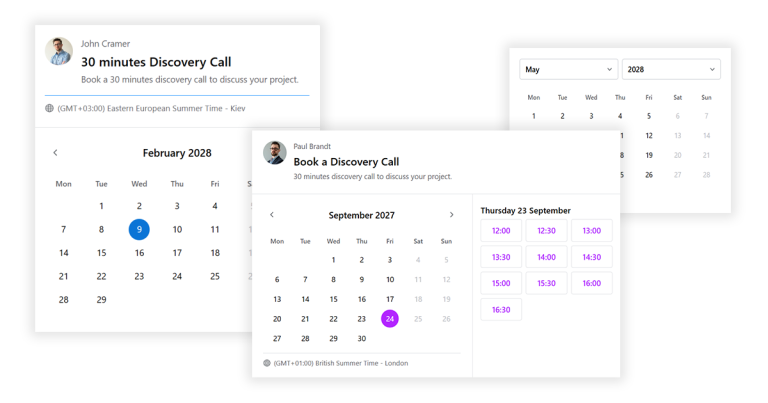
The booking widget sits inside your WordPress page — within your site’s header, footer, navigation, and colour scheme. The URL does not change. Prospective clients see a time picker, select a slot, fill in their details, and receive a confirmation email, all without leaving your domain.
There is no redirect. No moment where your branding disappears and someone else’s appears. From a prospective client’s perspective, booking a discovery call feels like using a feature of your website — because it is. For a VA whose professional pitch includes being organised, efficient, and on top of the details, that impression starts at the booking step.
Setup and cost
Installing CalNative Booking is straightforward for anyone already comfortable in WordPress. The one step that goes slightly beyond a standard plugin install is creating a Google service account in Google Cloud Console — a one-time process that takes around 20 minutes. A complete walkthrough is at How to Set Up a Google Service Account for WordPress. Once configured, the connection to Google Calendar is permanent — no OAuth tokens to reconnect, no annual re-authorisation.
CalNative Booking costs $39/year for one website. For VAs currently paying for Calendly Standard ($120/year) or Calendly Teams ($192/year), the saving is significant. More importantly, discovery calls now happen on your own website, under your own brand, with client contact details stored in your WordPress database rather than on a third-party scheduling platform’s servers.